Advanced Join Keys
The Advanced Join Key feature enables you to customize join keys when establishing relationships, such as object-to-object or activity-to-object relations. This is useful when columns do not match one-on-one.
Advanced Join Key Types
You can manipulate columns using any of the following advanced join key types:
| Type | Description | Usage | Example |
|---|---|---|---|
| Constant | Inserts a constant value. | - Select Value: Specify the constant value to use. | If you set the value to 4748, the constant 4748 will be used in the join key. |
| Padding | Pads a column's value with a specified character to a certain length, either from the left or right. | - Select Column: Choose the column to pad. - Direction: Left or Right. - Length: Total length after padding. - Character: Character to pad with. | Padding the ID column to a length of 5 with zeros on the left:- Original ID: 123- Result: 00123 |
| Trim | Trims characters from a column's value from the left or right. | - Select Column: Choose the column to trim. - Direction: Left or Right. - Length: Number of characters to trim. | Trimming 2 characters from the left of Code column:- Original Code: ABCD- Result: CD |
| Left Characters | Takes a specified number of characters from the left of the column's value. | - Select Column: Choose the column. - Number of Characters: How many characters to take from the left. | Taking 3 characters from the left of Name column:- Original Name: Jonathan- Result: Jon |
| Right Characters | Takes a specified number of characters from the right of the column's value. | - Select Column: Choose the column. - Number of Characters: How many characters to take from the right. | Taking 2 characters from the right of Serial column:- Original Serial: A12345- Result: 45 |
| Substring | Extracts a substring from the column's value starting at a specified position for a certain length. | - Select Column: Choose the column. - Start Position: The starting character position. - Number of Characters: Length of the substring. | Extracting 3 characters starting at position 5 from AccountNumber column:- Original AccountNumber: 123-456-789- Result: 456 |
Example: Join Key Columns with Different Formats
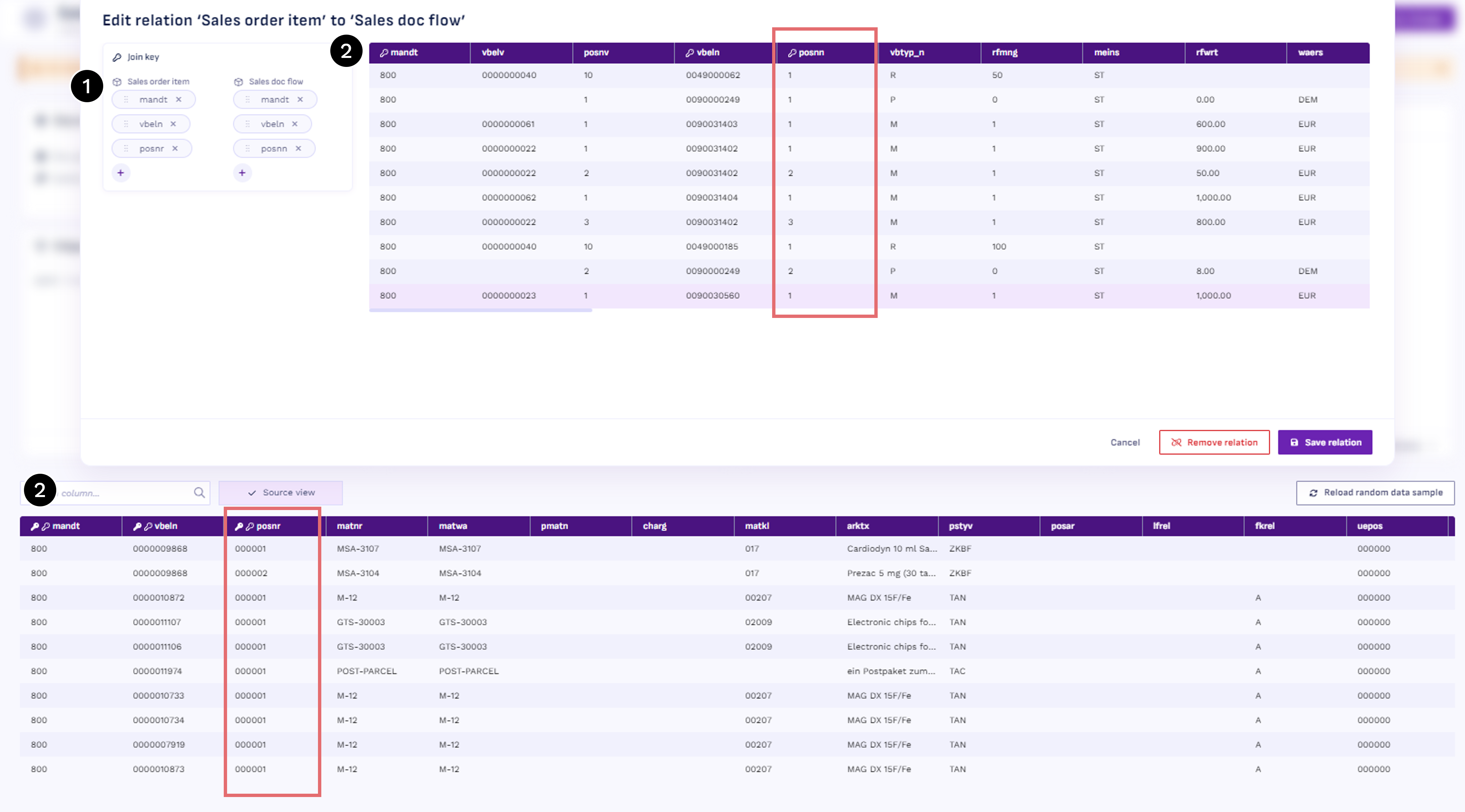
Let’s explore when and how to use the Advanced Join Key feature. In this example, we want to create a relationship between the object Sales order item and Sales doc flow.
Key details
- To connect the two tables, we use three join keys for each table.
- Comparing the column previews, we observe the following:
- The columns
mandtandvbelnhave a matching format in both tables. - However,
Sales order item.posnrincludes leading zeros, whileSales doc flow.posnndoes not.
- The columns
Problem:
If we try to establish this relationship without modifications, Konekti will issue a warning: no relations could be created due to the mismatch between posnr (000001) and posnn (1). These are treated as different values.
Solution:
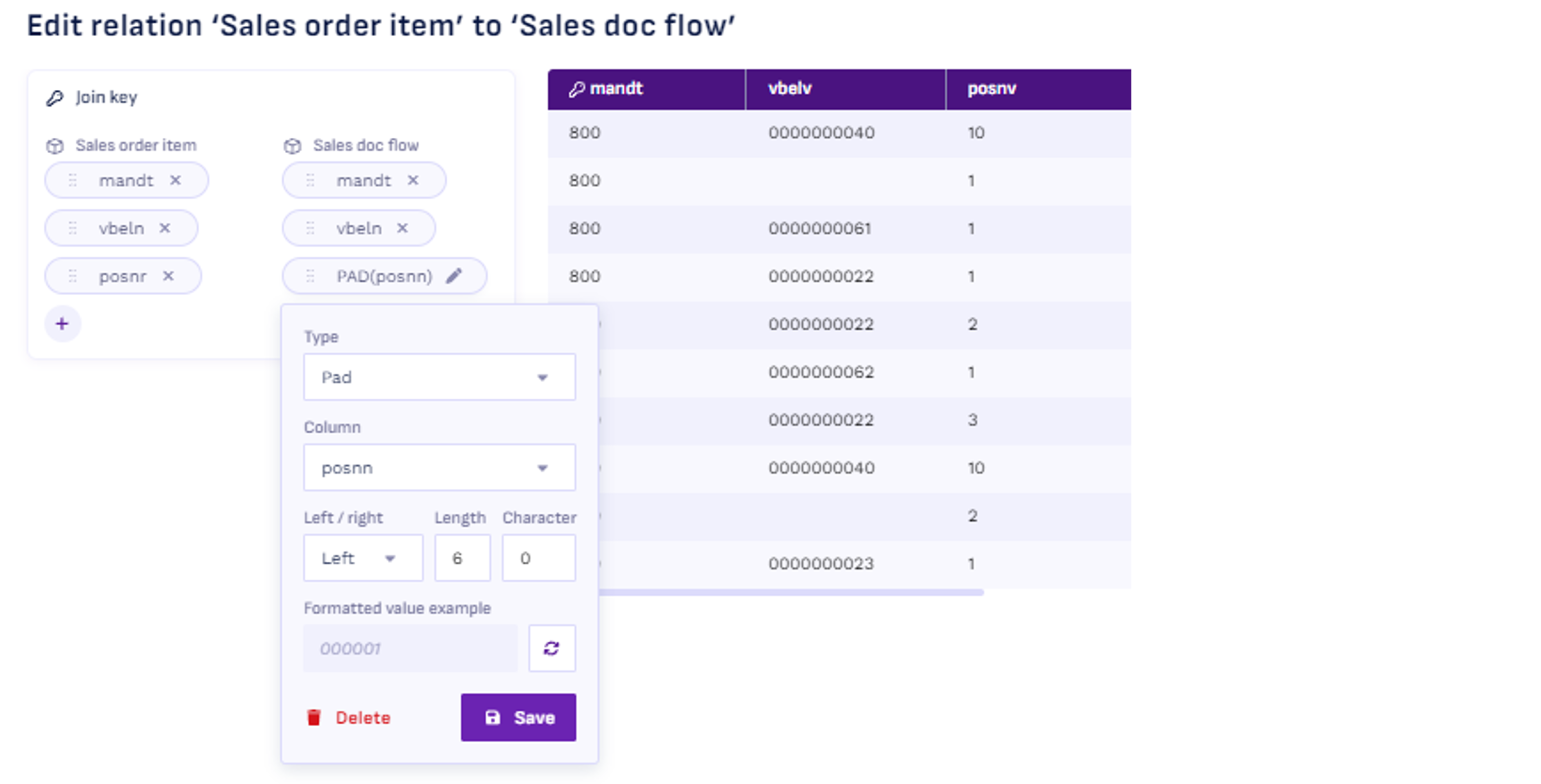
We can resolve this by modifying Sales doc flow.posnn with an Advanced Join Key. By adding padding, we can reformat 1 to 000001, ensuring consistency between the columns.
How to Add an Advanced Join Key
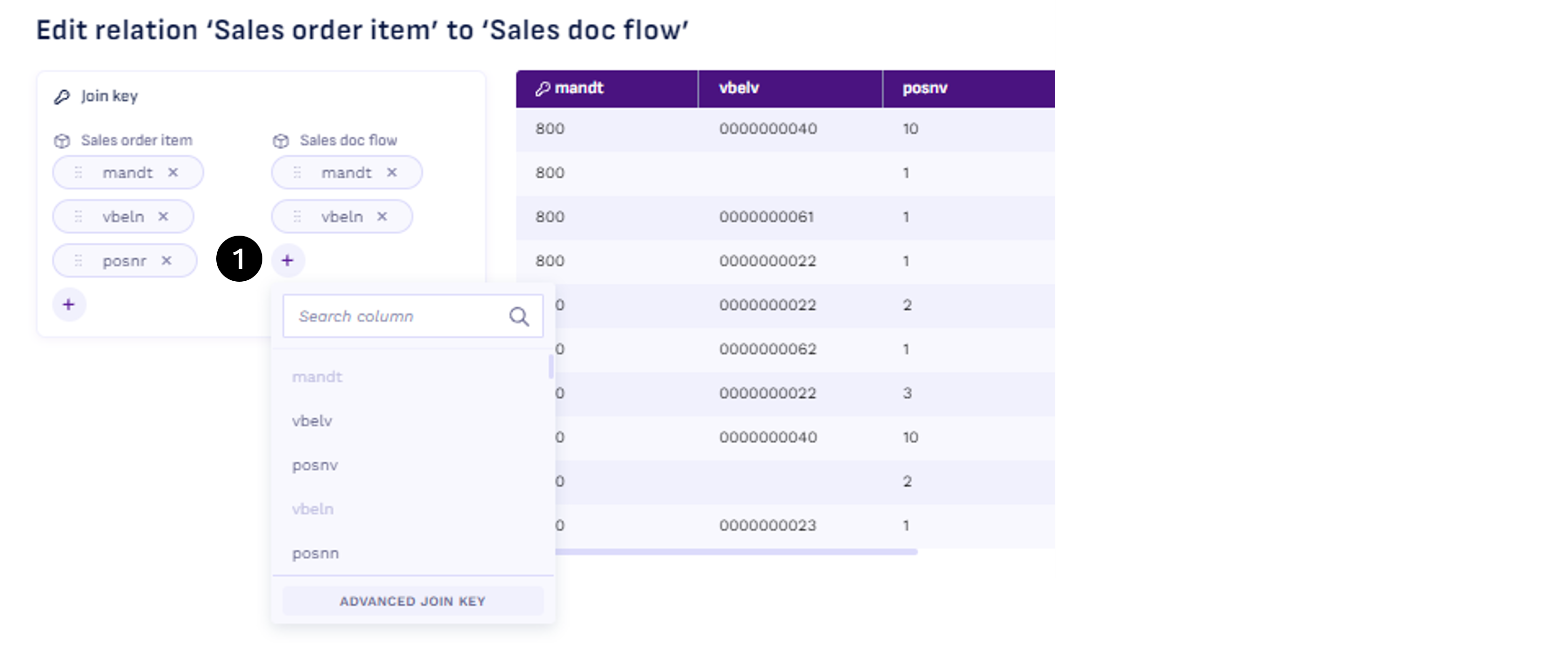
- Go to the Edit relation screen.
- Click the
+option to add a join key. - From the dropdown menu, select Advanced Join Key.
- Enter the required details to customize the key.
- Click Save to apply your changes.
Example: Configuring an Advanced Join Key
In our example, we configure the Advanced Join Key for Sales doc flow.posnn. The Formatted value example field in the editor shows the result of the reformatting. After applying padding, posnn is aligned with the format of posnr.