Event store
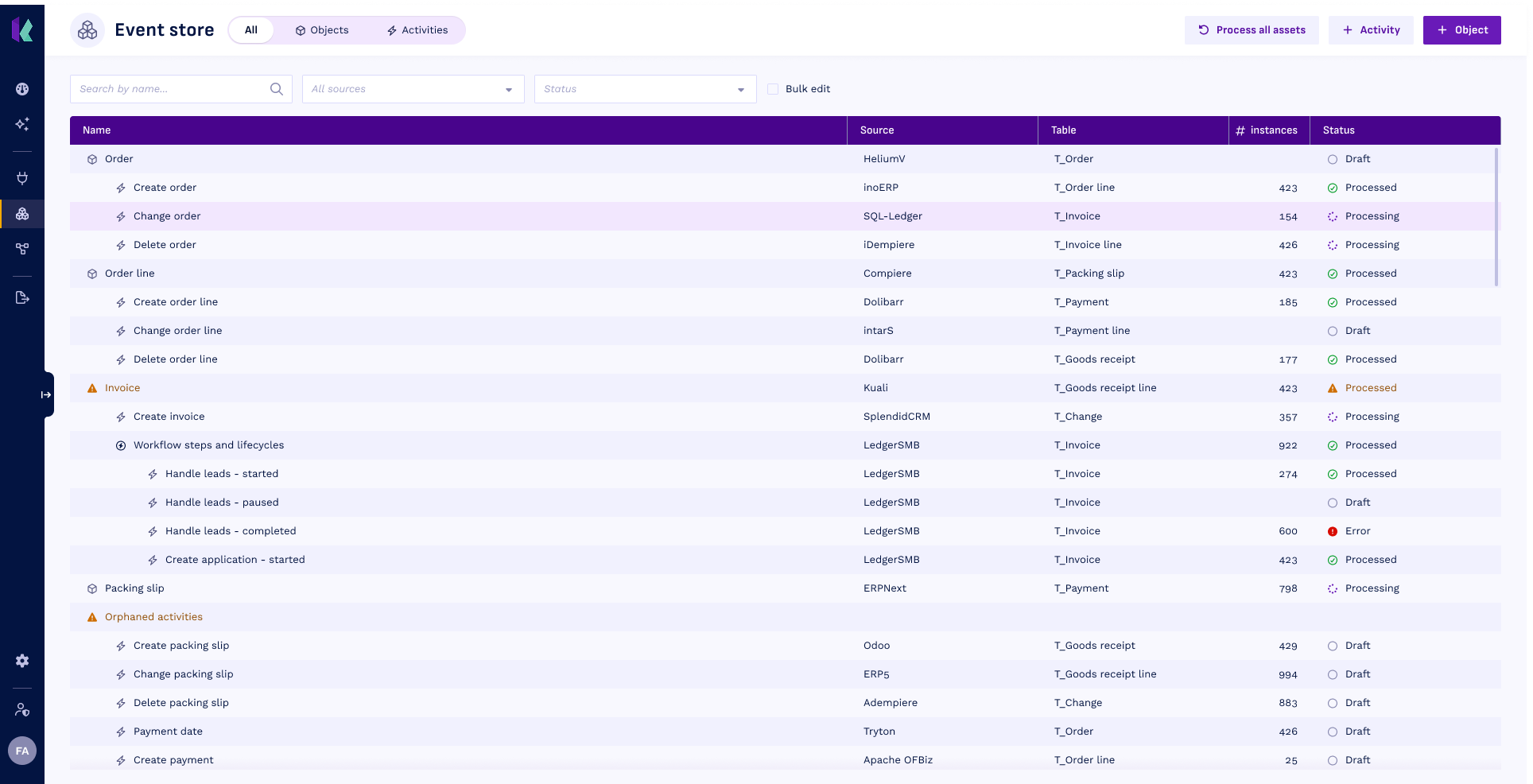
The Event store page lists everything in your model. Where the dashboard shows your model as a diagram, this is the table view: every object and activity, what it is built on, and what state it is in.
The three tabs
All
Objects with their activities nested underneath, so you can see the structure at a glance. Activity batches are marked (batch) and expand to the activities they generate. Any activities that are not linked to an object are grouped under Orphaned activities.
Columns: Name, Source, Table, # Instances, Status.
Objects
Only the objects, with more detail about each one.
Columns: Object, Source, Table, Identifier, Activities, Related objects, # Instances, Status.
Activities
Only the activities, including which object each one belongs to.
Columns: Activity, Object, Source, Table, Timestamp, # Instances, Status.
The Status column tells you whether something is still a draft, is being processed, or ran into an error. See Statuses.
Finding what you need
Every tab has its own search box and filters:
- All: search across your model, and filter by source or by status.
- Objects: search by name, table or identifier, and filter by source.
- Activities: search by name, table or timestamp, and filter by status.
Opening an object or activity
Select any row to open its detail page. That is where you configure it: its source and filters, its attributes, and how it relates to other objects. See Objects and Activities.
Adding objects and activities
Use Object or Activity to create one without leaving this page.
Most people start on the dashboard, which is built around getting a new model off the ground. Once you are working in the tables, adding from here is often quicker.
Working on several items at once
Switch on Bulk edit to get a checkbox on every row. Select what you need, then:
- Reload from source rebuilds the selected items from their source data.
- Cancel processing stops items that are currently being processed.
- Delete removes the selected items.
Processing everything
Process all assets rebuilds your whole event store from its sources, exactly as it does on the dashboard. See Processing your assets.