Process
A process in Konekti is a focused way to look at your data. It shows a subset of assets from the event store, built to answer a specific set of business or analysis questions.
Processes can be used both to feed object-centric process mining (OCPM) and to create case-centric event logs. End-to-end business processes can have many processes, together describing their behaviour.
Leading object:
The leading object is what you follow through the process. Each process has one. See the table below for two examples.
| Process | Leading object | Process instance |
|---|---|---|
| Order management | Order item | One order item |
| Ticket handling | Ticket | One ticket |
A process instance represents one instance of the leading object. For example, if the leading object is Order item, one process instance will cover one order item, never more.
You choose the leading object when creating the process and cannot change it later.
Related objects
A process can include other objects that are related to the leading object. For example, an order item can have multiple invoices and multiple payments associated to it. These related objects help explain what happened within the process instance.
Why direction matters
In the event store, objects are linked in both directions. You can go from object A to B and back again. But this leads to ambiguity and sometimes overcounting.
A process restricts which relations can be traversed and in which direction.
Let’s use an example to illustrate this:
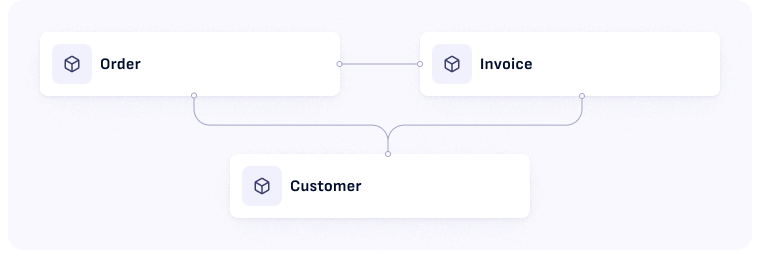
Let's consider an event store that contains the objects Order, Invoice and Customer
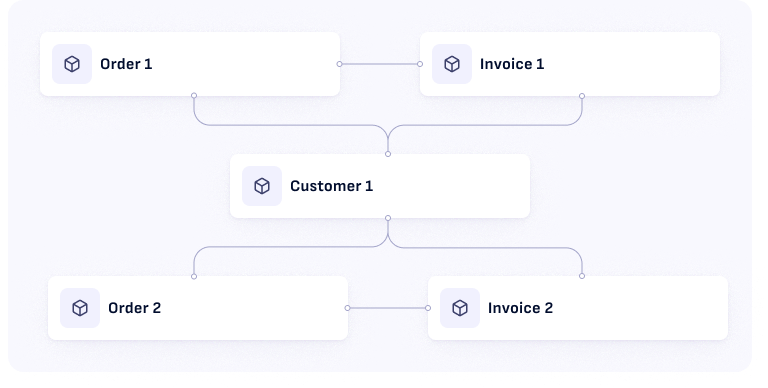
Zooming in to the level of object instances, Customer 1 is related to two orders (Order 1 and Order 2) and each order has an associated invoice.
If we would try to answer the question: “How many invoices are related to Order 1?”, our query would wrongly return the answer “2”:
- Order 1 > Invoice 1
- Order 1 > Customer 1 > Invoice 2
Only Invoice 1 is actually related to Order 1. But through the “Customer 1” object, a secondary path opens.
To solve this problem, we need to specify the relations’ directionality.
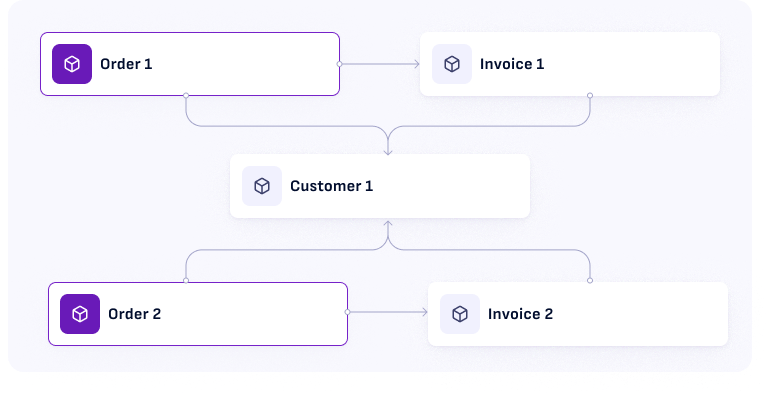
When we specify the relations’ directionality, it’s no longer possible to go from Order 1 to Invoice 2 (as the arrow between Customer 1 and Invoice 2 point the other way). Now our query will return the answer we want, which is 1.
Working on a process
A process opens in Edit. A toggle at the bottom left switches between three modes:
- Edit: build the process. Choose the leading object, add related objects, and set the direction of the relations between them.
- Object flow: check your process against real data, by following a single instance of the leading object through it.
- Process flow: see how your cases actually move from one activity to the next.
Object flow and Process flow need a process that has been processed. They stay unavailable while a process is still a draft, while it is processing, or while it has unprocessed changes. Select Process in the top right to bring it up to date.
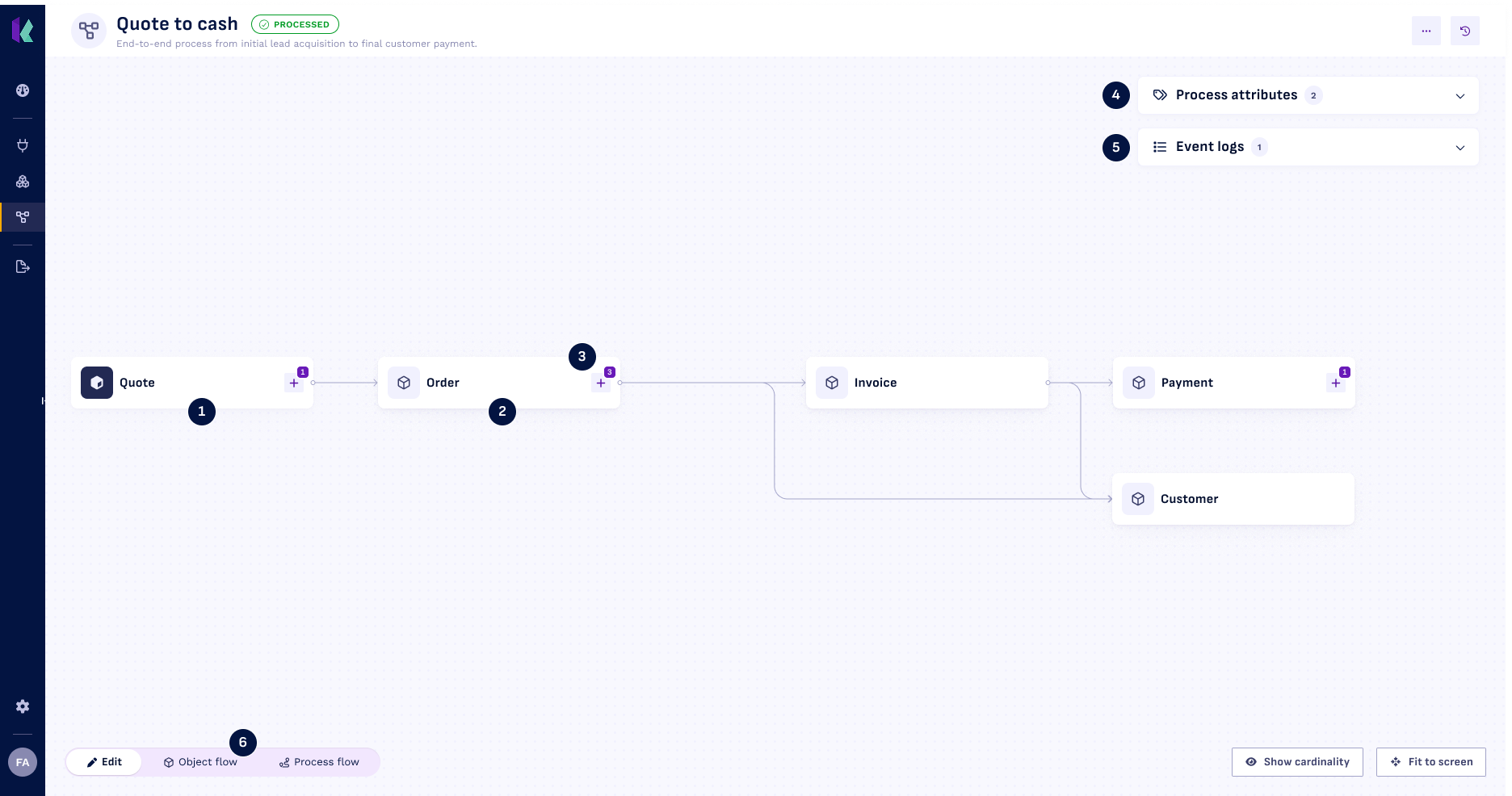
Edit
Edit is where you build the process:
- Choose the leading object. A new process starts with a search box. Pick the object you want to follow, keeping in mind that this cannot be changed later.
- Add a related object with the + button on a node. The badge on it tells you how many relations are available to add.
- Remove a related object by hovering over its node and selecting the bin icon.
- Change a relation by selecting the line between two objects. From there you can Swap direction or Remove relation.
- Show cardinality labels every relation with its cardinality. Hide cardinality turns the labels off again.
Two panels sit beside the canvas: one for your process attributes and one for your event logs. You can add and edit both from here. See Process attributes and Event logs.
Object flow
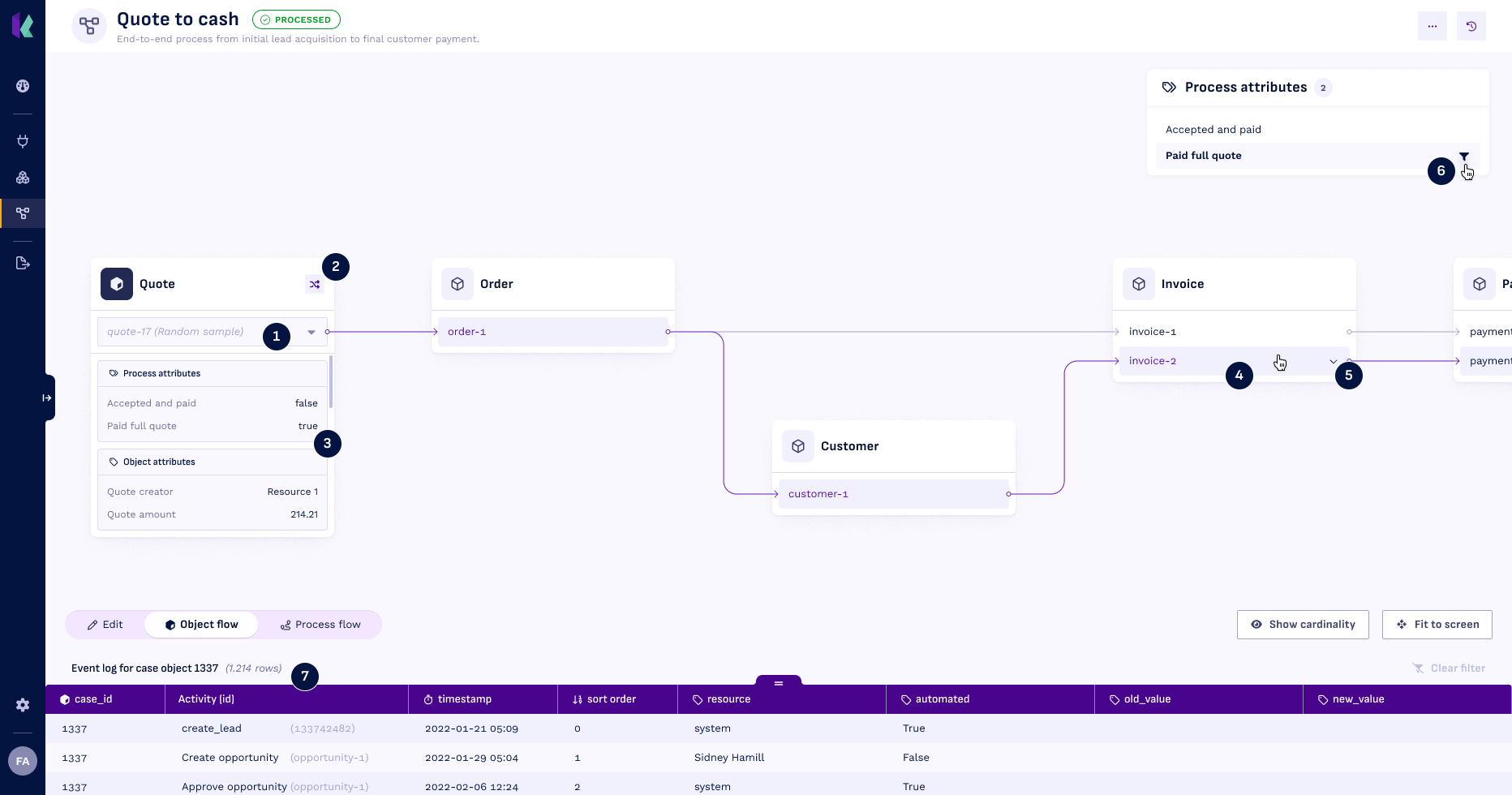
Object flow is where you check that the decisions you made in Edit hold up against real data. You pick one instance of the leading object and follow it through the process, seeing every instance related to it and how they connect.
This is useful while you are building, and it works especially well in front of stakeholders. Let them name a case they know, pull it up, and walk through it together.
- Choose an instance on the leading object node, either by searching for a specific identifier or by taking a random sample. The shuffle button next to it draws another one.
- See its attributes. The leading object node shows the process attributes and object attributes of the instance you are looking at.
- Expand a related instance to see its own attributes.
- Select a related instance to narrow the view down to the paths that instance is part of.
- Filter by a process attribute by selecting it in the panel. Only instances that satisfy it remain, which is a quick way to refine an attribute while you are building it. Select it again to clear the filter.
- Read the event log in the panel at the bottom, which lists the events for the instance you are following. Clear filters puts everything back.
Process flow
Process flow shows how your cases move from activity to activity, so you see the real shape of your process rather than the model behind it. It has a page of its own: Process flow.
The next step after you make a process ready is event log(s), learn more about event logs on the next page.