Event logs
The event log is the fundamental output of a process. By default, an event log with all activities that are related to the objects in the process is provided.
Additional event logs which are subsets of the overall event log can be created.
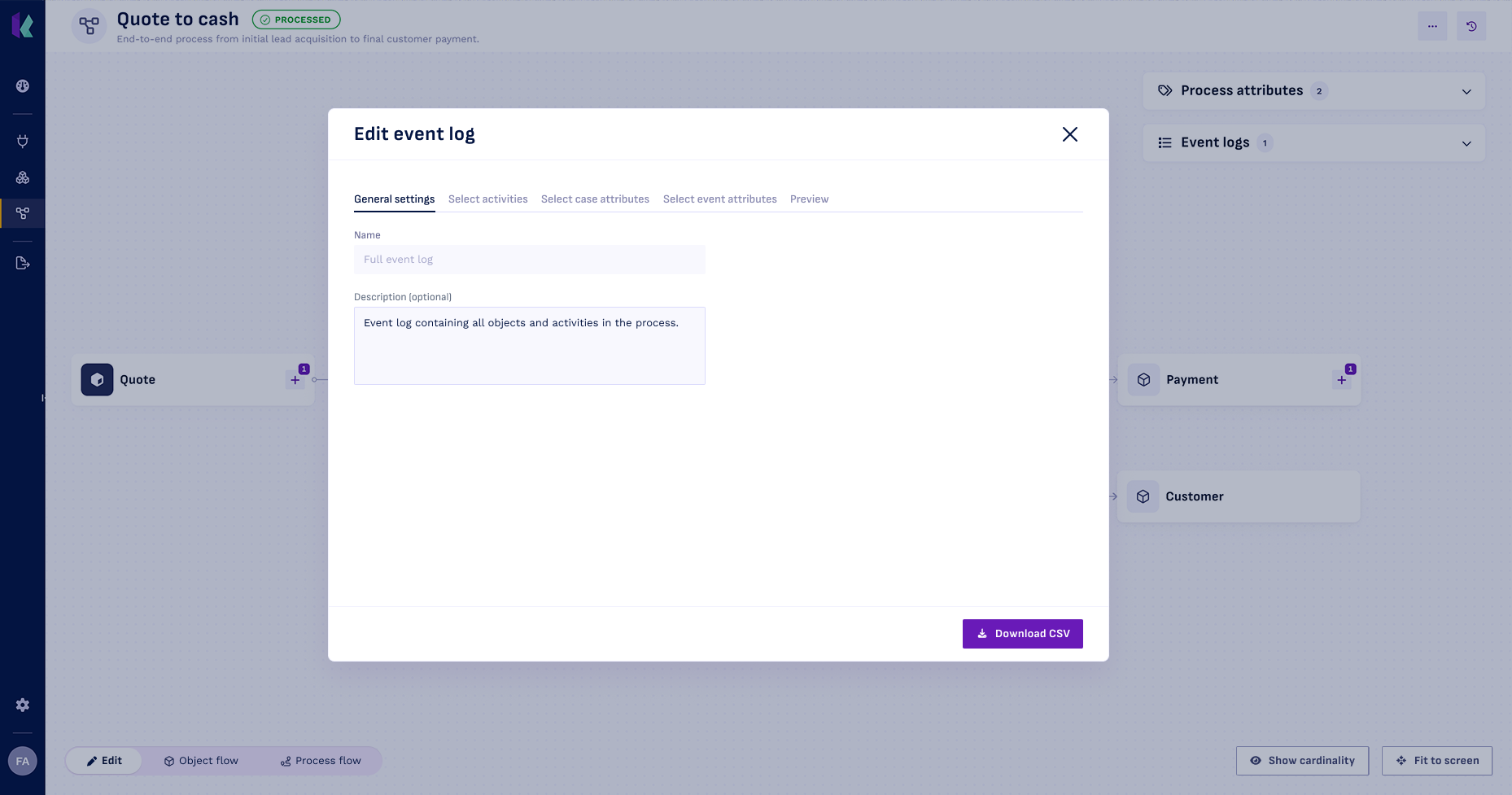
All saved event logs are available to be exported as data transformation code. They can also be downloaded to CSV for intermediate validation.
In an event log, the following things can be configured:
General settingsthe name and descriptionSelect activitieswhich activities to includeSelect case attributeswhich object and/or process attributes to include as case attributesSelect event attributeswhich activity attributes to include as event attributesPreviewa preview for what the exported event log will look like.- This will download the event log as a CSV.
- This will create and save the event log to the
Event logsregion.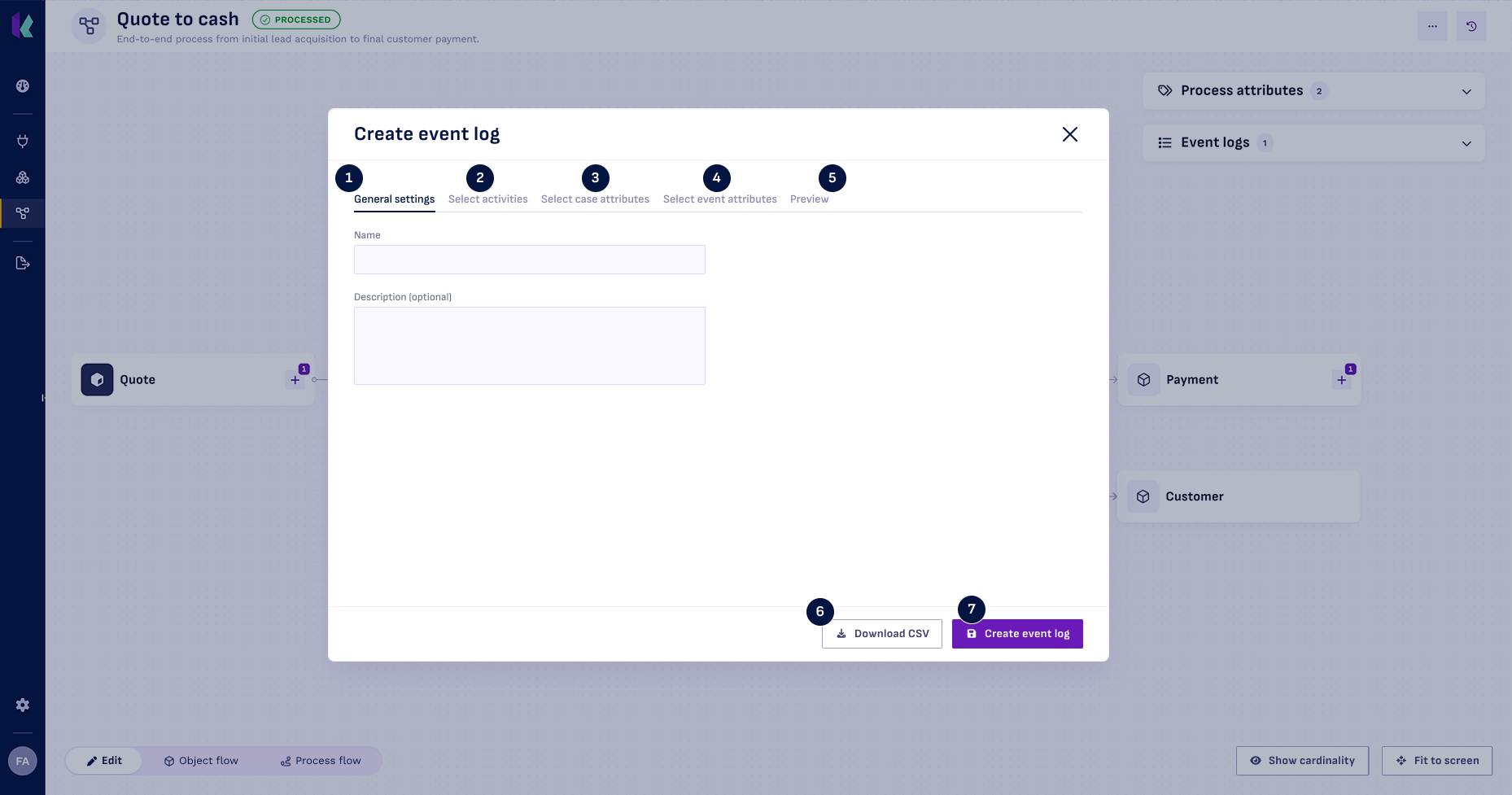
Saved event logs can be edited and downloaded at any time within the Event logs region.
Load log in analysis tool
To use the prepared event log in an analysis tool, you have three options:
- Download and Upload
- Connect to the Konekti database
- Code Export
You should pick the export option that fits best for the current situation. During development we suggest that if your analysis tool has a Postre SQL database connector you pick the Database connection option. If not the Download and upload option.
Once you have finalised your data model and are ready to put it into production we reccommend the Code Export.
1. Download and Upload
Press the Download CSV button either in the Event logs region or the modal of an Event log as explained here above.
A .zip wil be generated after clicking download containing:
{Caseobject}.csv(The leading object table).{Eventlog}.csv (The event log).
Upload these files as flat files into your analysis tool.
2. Connect to Konekti Database:
Create a database connection from your analysis tool to the Konekti database for seamless access to your event log data.
- Connect to the Konekti database using a PostgreSQL connector.
- Fill in the connection details. For local deployment, these details should look similar to:
- Server name:
localhost:6543 - Database:
konekti
- Server name:
- Log in with credentials. For local deployment, these details should look similar to:
- Username:
postgres - Password:
********
- Username:
- Select the event log tables from the list.
Extracting objects
Using the database you can also access the objects used in the event logs. You can use these to enrich your analysis tools if they allow this.
The Objects can be accessed through the eventstore_X schema.
3. Code Export:
Go to the Export page, press Download code and choose the Event log(s) you want. Supported code exports are:
- Apache Spark
Your event log and additional object tables now appear in the data panel of your analysis tool!
More about export can be found here