Dashboard
The dashboard is the first thing you see when you open a workspace. It shows your event store as a diagram, and it is where you start building your model.
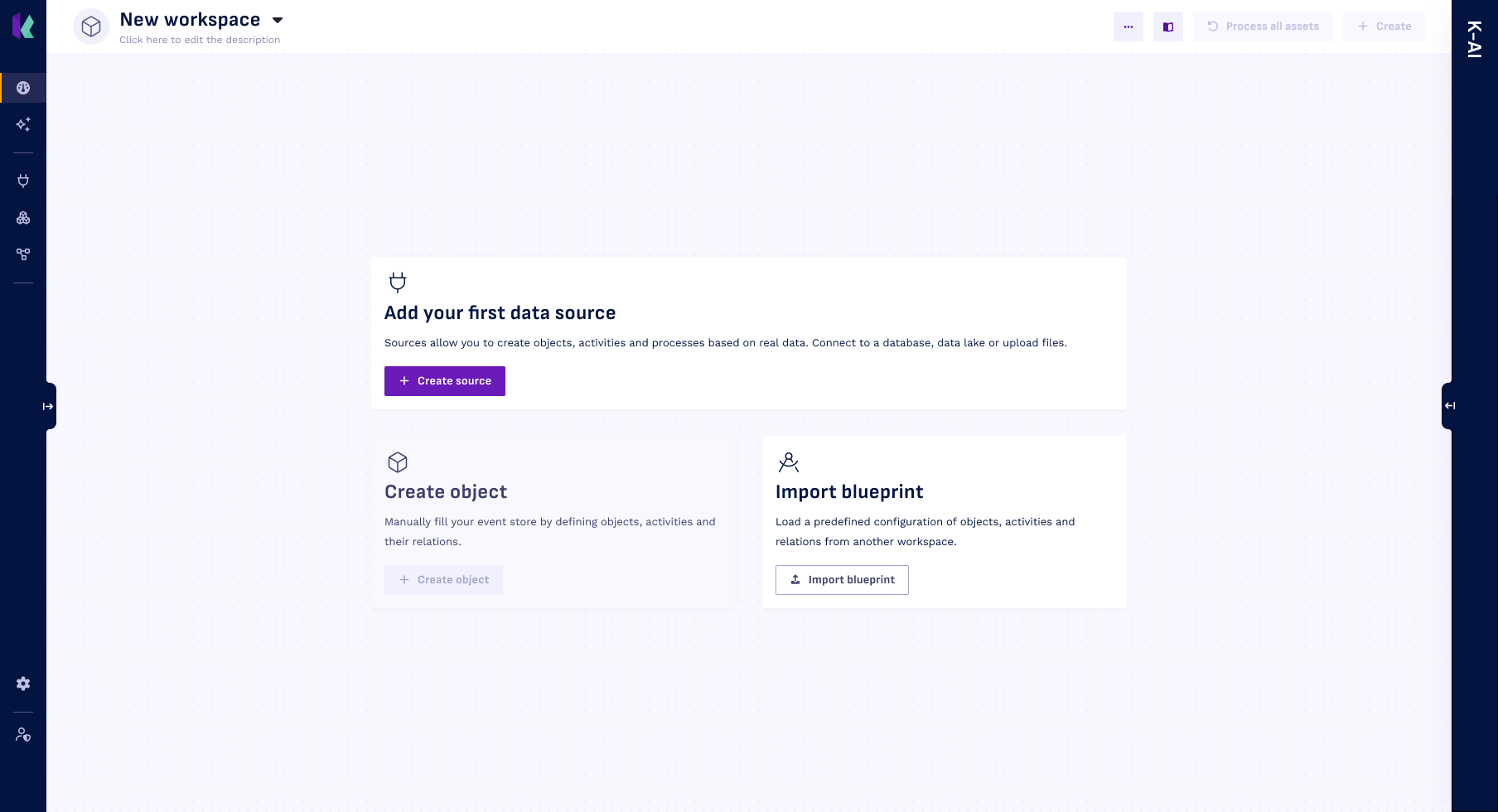
Starting a new workspace
An empty workspace offers you three ways to get going:
- Add your first data source. Objects and activities are built from source data, so this is where most workspaces start. Connect a database or data lake, or upload files.
- Create object. Once you have a source, define your first object yourself.
- Import blueprint. Load a ready-made set of objects, activities and relations from another workspace.
Creating objects and activities
Select Create, then choose Objects or Activities.
The dashboard is the starting point for building your model, but it is not the only place. Once you are working in more detail, you can also add objects and activities from the Event store page.
Create stays disabled until your workspace has at least one source. Objects and activities are built from source data, so there is nothing to point them at until then.
New objects and activities start as drafts. They become part of your model once they have been processed. See Statuses.
Reading the diagram
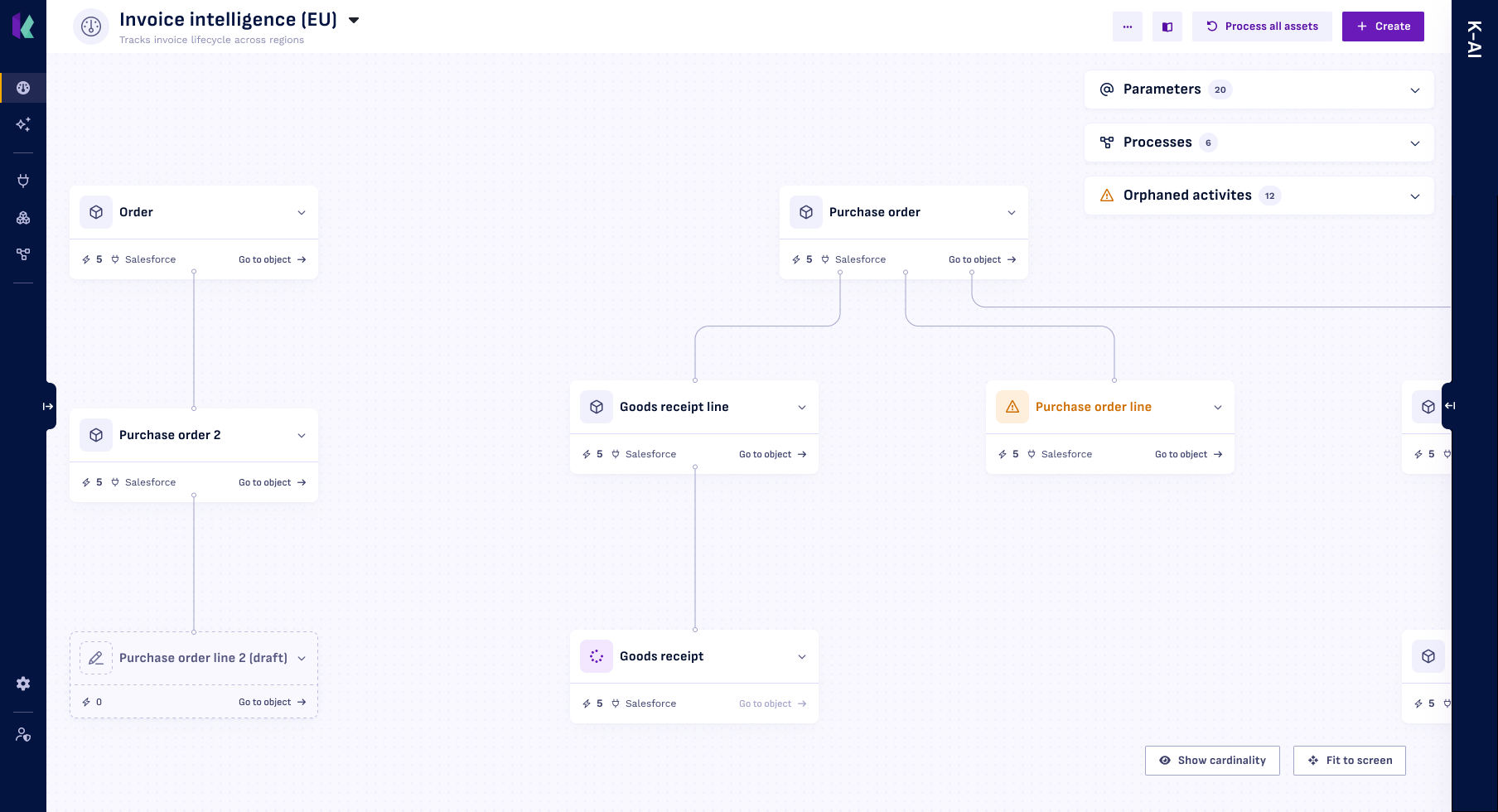
Every node in the diagram is an object, and the lines between them are the relations that connect them.
- Expand an object with the chevron on its node to see the activities that belong to it. An object without any tells you so.
- Activity batches expand again, to show the individual activities they generate.
- Select an activity to open its detail page.
- Go to object, at the bottom of a node, opens that object's detail page.
- The bottom of a node also shows how many activities the object has, and which source it comes from.
Relations and cardinality
Select Show cardinality to label every relation with its cardinality, then hover a label to see the detail behind it. Hide cardinality turns the labels off again.
Fit to screen brings the whole diagram back into view. You can pan and zoom with your mouse.
The panels beside the diagram
Three collapsible panels sit next to the diagram, each with a count. Only one is open at a time:
- Parameters: the parameters in this workspace, and a button to add one. See Parameters.
- Processes: the processes built on this model. Select one to open it.
- Orphaned activities: activities that are not linked to any object. They cannot be used until you connect them, so this panel only appears when there are any.
Processing your assets
Process all assets rebuilds your event store from its sources. You choose what to include: sources, the event store, and processes.
Processing deletes your assets and recreates them from the sources. On a large workspace this is demanding and can take several hours.
Blueprints and workspace actions
The blueprint menu holds Load blueprint and Export blueprint, for moving a model between workspaces. See Use blueprints.
The actions menu beside it holds the workspace-level options: Version history, Save version, Execution log, and Get MCP Key. Admins also get Delete workspace.