Create Activities
An activity is "something that happens to an object". If you have not created an object yet, we recommend doing that first (see Create Objects).
There are two ways to add activities:
- From the quick action toolbar in the object detail screen. This is recommended for activities stemming from object sources. For more information, see Create Objects.
- From the Create menu on the dashboard. This is recommended for activities stemming from Change logs and Workflow logs. How that works is explained in this section.
For a refresher on activity types (Object sources, Change logs, Workflow logs), see the Activities section in the Important concepts.
Add an Activity from the Dashboard
Step 1: Create a New Activity
- Open the Dashboard.
- Select Create, then Activities.
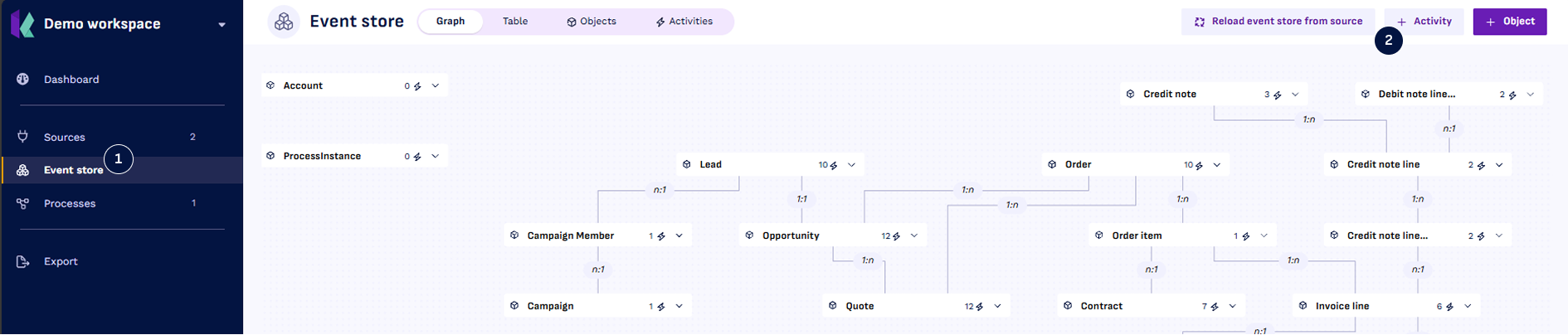
You can also create an activity from the Event store page, with the Activity button.
Step 2: Select Source (Table & Identifier)
- Fill in the key fields of the activity. See the table below for additional information.
- Click
Create draft activity.
Activity Key Field Details
| Field | Details |
|---|---|
| Source | The table that contains the timestamp of the activity. |
| Timestamp | The column (or columns) that contain when the activity has taken place. |
| Activity name | The name used throughout Konekti to refer to this activity. |
Step 3: Configure Activity Details
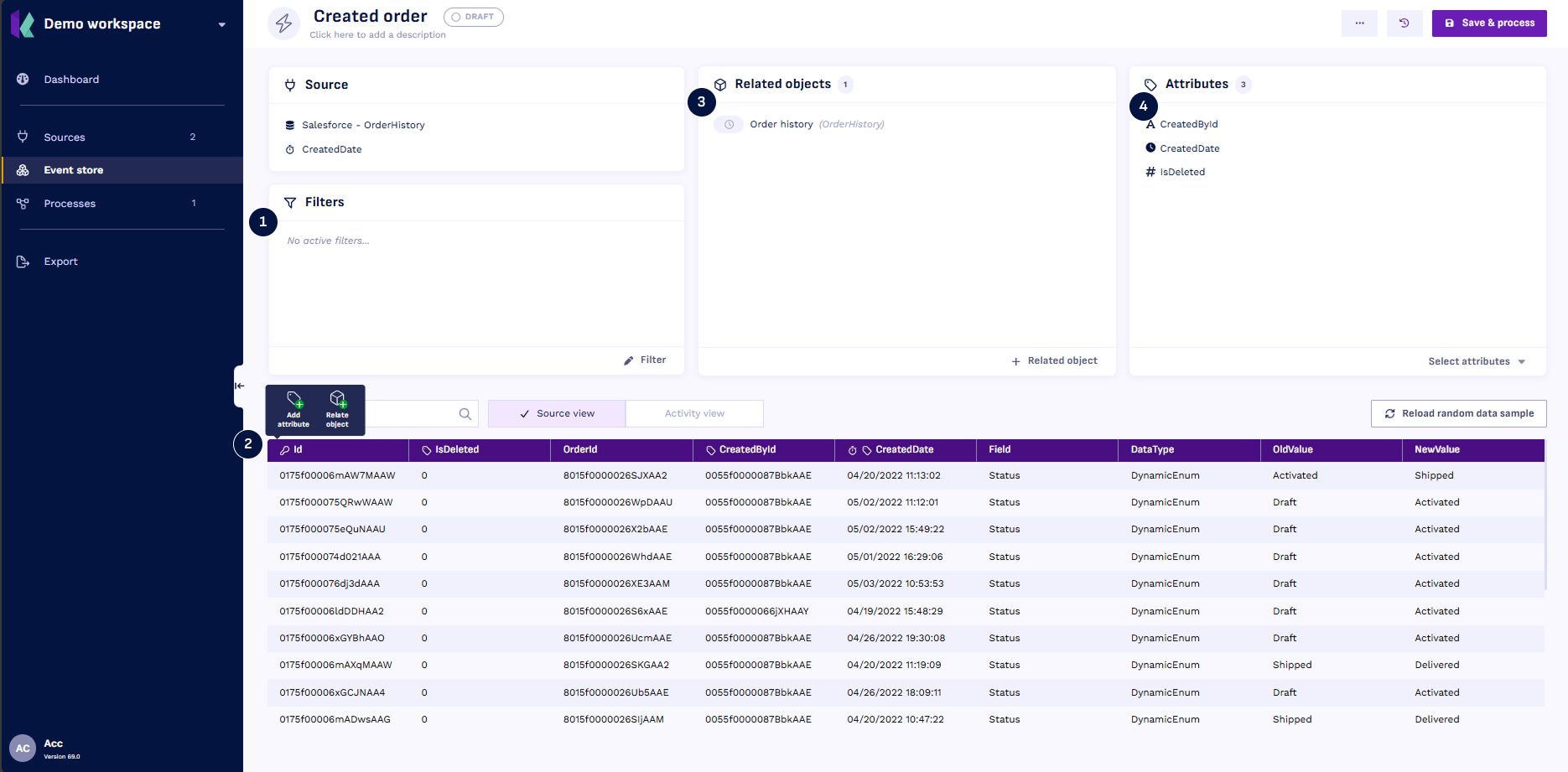
-
Select filters if not every row of the table is an instance of the activity. Add and edit filters using the
 Filter button.
Example above: the activity Change business unit is obtained by filtering the table Changes to only include rows where:
- Column change_table equals orderlines; AND
- Column change_column equals business_unit
-
Explore sample data in the Source view. Hover over a column name and use the Quick action toolbar when the column:
- Is the key to a related object; in the example below, record_id is the join key to the object Purchase order Line. To relate objects with custom join key refer Advanced Join Keys.
- Is an attribute you would like to include in your event log; in the example below, change_by, new_value, and old_value are marked as attributes.
- Is an attribute you would like to add by manipulating existing column(s), refer to Calculated Attributes.
-
Review
 Related objects to ensure the activity is related to at least one object.
-
Review
 Attributes for necessary attributes and, optionally, rename them using the edit icon.
Step 4: Process Activity
- Select
Save & processto complete the activity creation.
Once processed, the activity is ready for use throughout Konekti.
To learn the different ways of creating activities in Konekti, follow the Tutorials.