Create activity batch
Konekti now supports activity batches, a feature designed to streamline the process of creating activities from a single data source.
With activities batches, you can automatically generate multiple activities based on the distinct values of a specific column in your dataset. This is especially useful when working with sources like changelogs or logs that record multiple events or changes in a single file.
Example Consider a changelog where each row represents a change, and one of the columns specifies the item that was changed (e.g., file name, setting, or component). By creating an activity batch on that column, Konekti will automatically generate a separate activity for each unique item mentioned—saving you time and ensuring comprehensive tracking.
Creating an activity batch
To create an activity batch you first open the activity creation in the same way as you would do for a normal activity.
To then create an activity batch instead you should:
- enable activity batch mode
Click the
Activity Batchicon to switch to activity batch configuration. - Name your batch activity Provide a clear and descriptive name for the activity batch.
- Assign a data source Select the dataset that contains the events.
- Select timestamp column(s) Select the column(s) that contain the timestamp information used to sequence activities.
- Choose grouping column(s) Select the column(s) that contain the values to group by. Each unique value in these column(s) will generate a separate activity. You can also add text to make the name of your events more descriptive for example adding change, as shown in the example.
- (optional) Apply filters You can optionally apply filters to include only specific rows based on column values.
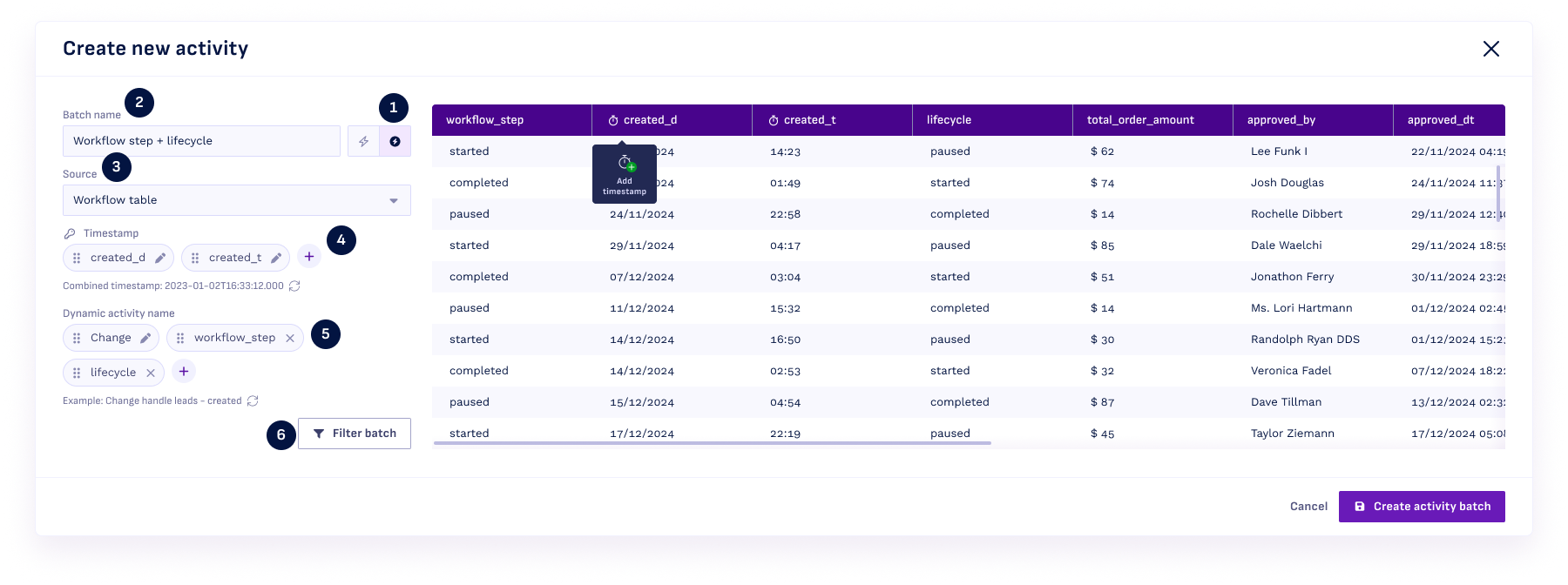
Once you have succesfully completed this you can configure the activity batch.
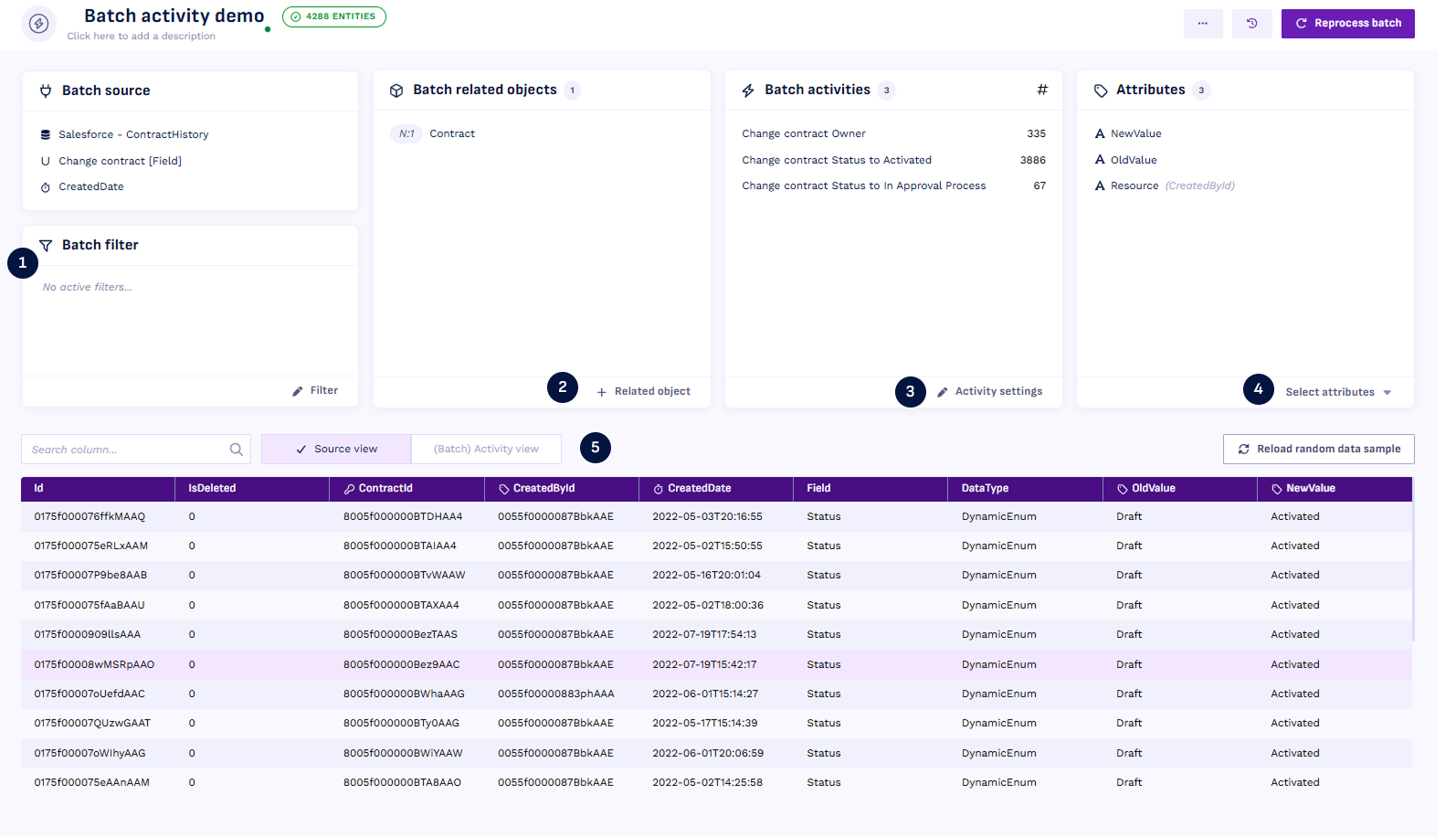 In the batch configuration screen you have multiple options and tasks that have to be done.
-
(optional) Apply filters If you choose not to apply filters previously, you can do it from here.
-
Relate objects You should relate the activity batch to all objects it is related to. In the example there are no unique join keys to join only the correct activities to an object. To do that we can use Advanced Join Keys
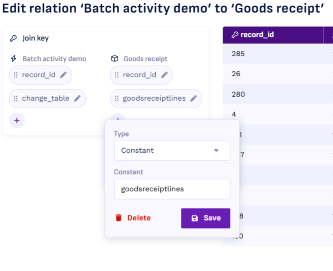
As you can see above we create a constant join key for the object to compare to change_table on the batch activity.
-
Activity Settings Upon opening the activity settings you have the possibility to change existing activities or add new ones. We will go more into depth about this in the next section.
-
Attribute selection Select the attributes that you want to include in your event logs, this will be applied for all activities in the batch.
-
Preview data Here you can preview either the original dataset or the activity view, which is the view how it would show up in your event log.
Activity Settings
In the activity settings you can modify activites or add new ones. For example you want an activity, for all orders from a specific country.
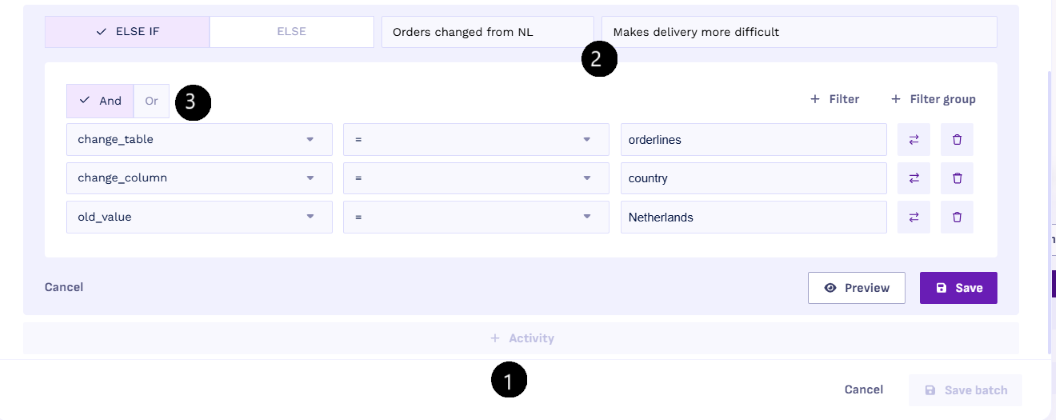
- Create a new activity
Click on the
+ Activitybutton to open this screen - Name the new activity Give a clear and descriptive name to the new activity
- Add the filters Add the filters for when it is this specific activity, in this case when it changed away from the netherlands.
Here you also have the option to add an activity using Else, instead of conditional statements. This makes it so all the activities you have not defined yet get added here making it a good way to check for completeness.