Calculated Attributes
Calculated attributes enable the creation of new attributes by manipulating existing column(s) data. This feature is available in both object and activity detail pages.
Steps to Create a Calculated Attribute
-
Click the select attributes dropdown in the
 Attributes section.
-
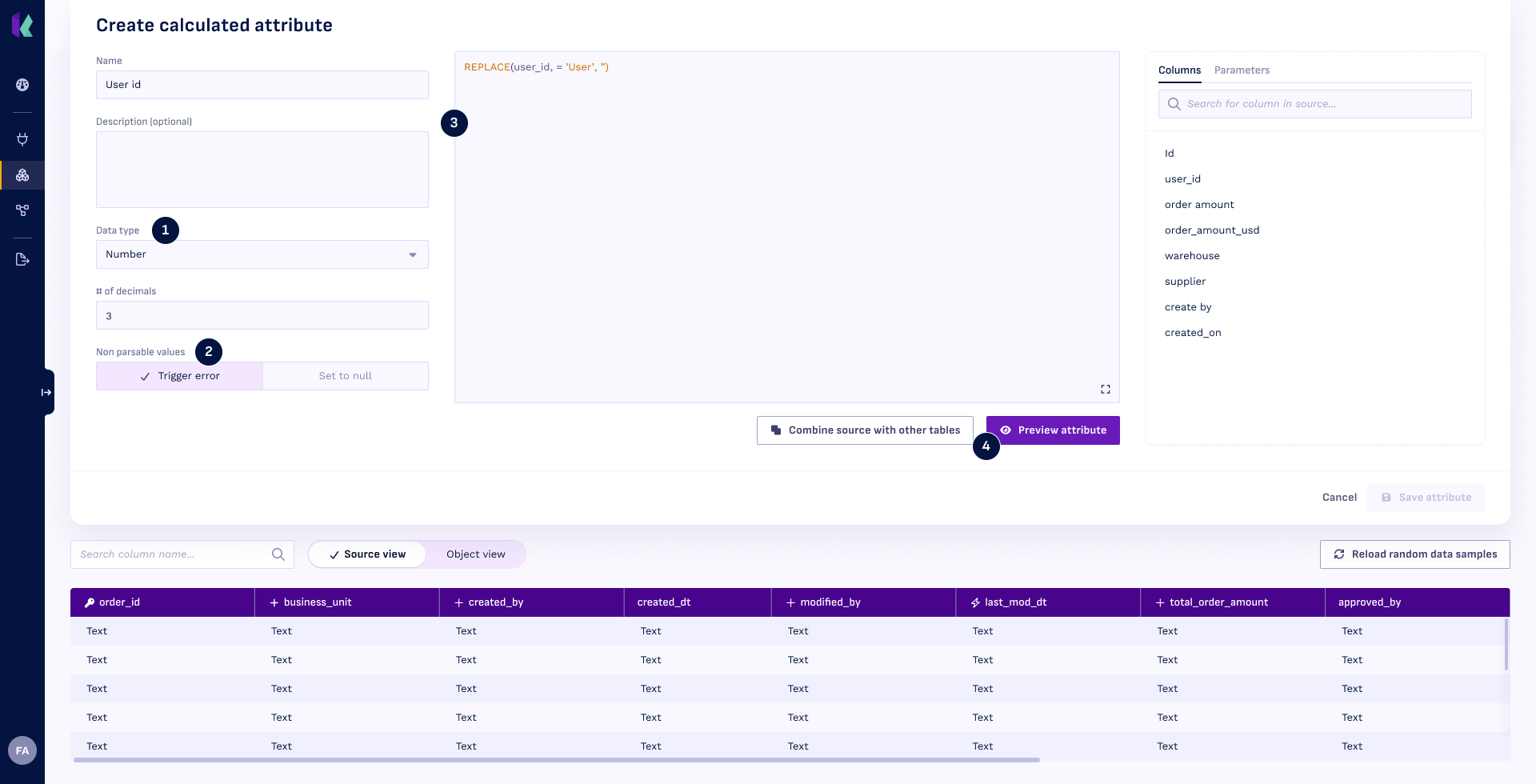
Select the Calculated Attribute option. This will open the Create calculated attribute page, as shown below:
-
Set the data type for the Calculated Attribute. This can be “Text”, “Number”, “Boolean”, or “Datetime”. For the “Number” data type, a decimal value must also be specified, which can be 0.
-
Non parsable values will trigger errors, to counter this choose "Set to null" in the toggle.
-
Enter an ANSI SQL expression in the editor to manipulate column values.
Example: If the
user_idcolumn contains values likeUser_1234, and you want only the numeric part (1234), you can create a calculated attribute using an appropriate SQL expression. -
Click the Preview attribute button to validate your SQL expression. If successful, the calculated attribute will be displayed in the data table.
-
If the previewed values meet your expectations, click the Save attribute button to add this manipuated column values as separate attribute.
- Always preview your calculated attribute to ensure accuracy before saving.
- Use the column select list on the right side of the editor to insert column names easily into your SQL expression.
- Are you looking for a column that's not yet in the table? Click the Convert to combined source button to join columns from other tables to the object/activity source.
Note
In this editor, you don’t write full SELECT statements. Instead, focus on defining expressions for individual columns. These expressions automatically integrate into the broader query.
Example: Instead of writing SELECT column_name + 1 FROM table_name, simply write column_name + 1. Konekti will handle the rest.