Filters
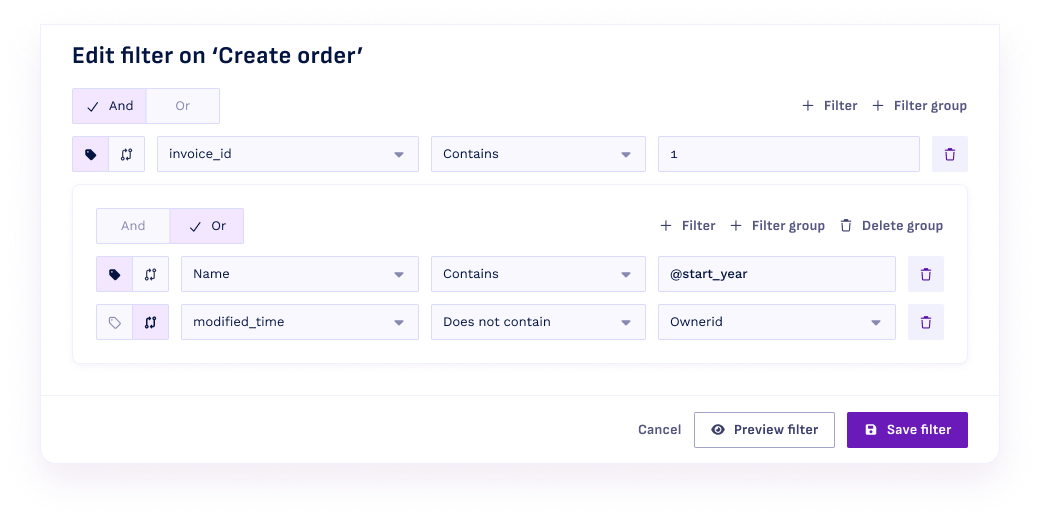
Filters can be found on both the object details and the activity details and reduce the number of rows you load in from the source table. The table below explains the different features of the filter.
| Feature | Explanation |
|---|---|
 | When the filter contains multiple conditions, this determines whether all conditions need to be met (AND) or only one of them (OR). |
 Filter | Adds a condition to the filter |
| Filter group | Adds a new group to enable you to mix AND and OR statements. |
 | Changes the condition from a constant to a column comparison; click it once to change the field from a regular field to a dropdown containing all the columns of the table. Click it again to type constant values again. |
 | Removes the condition from the filter. |
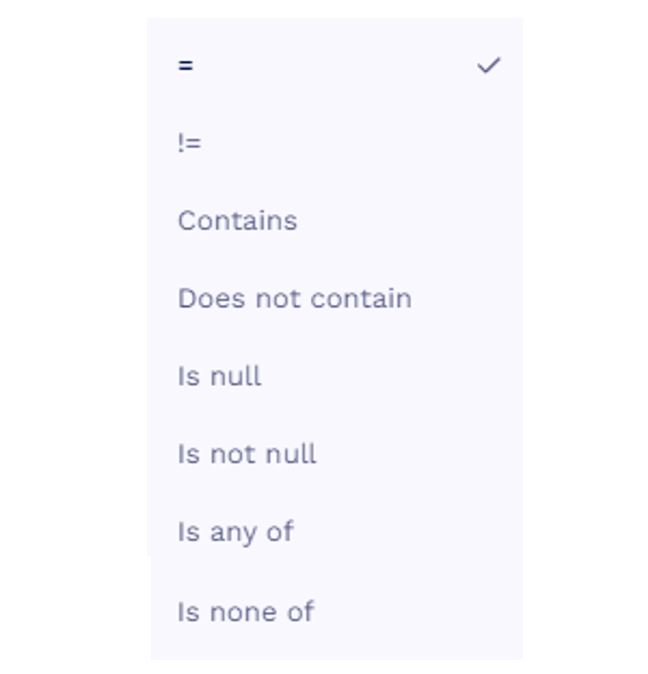 | Every filter requires a filter operator. Please note that = with an empty string is not the same as Is null. Also, when using Is any of or Is none of, there is an option to Select all distinct values from column. This can be very helpful when you're unsure what values are in a specific column. |
As an example, see the filter below for the activity Change amount. Here, all the rows of the table Changes were taken into account if:
- The value in column change_column was equal to amount_usd; AND
- The value in column new_value was larger than the value in column old_value; AND
- The value in column change_table was either equal to orders or equal to orderlines.