Workspace access
The Workspaces area is where you create workspaces and decide who can work in them.
The workspaces list
The list shows every workspace in your organization:
| Column | What it shows |
|---|---|
| Workspace | The workspace name |
| Accessible by | The users and groups that have a role in it |
| Linked AI provider | The AI API that is accessible in that workspace |
| Accessible connections | The connection that can be used in that workspace |
| Creation date | When the workspace was created |
Creating a workspace
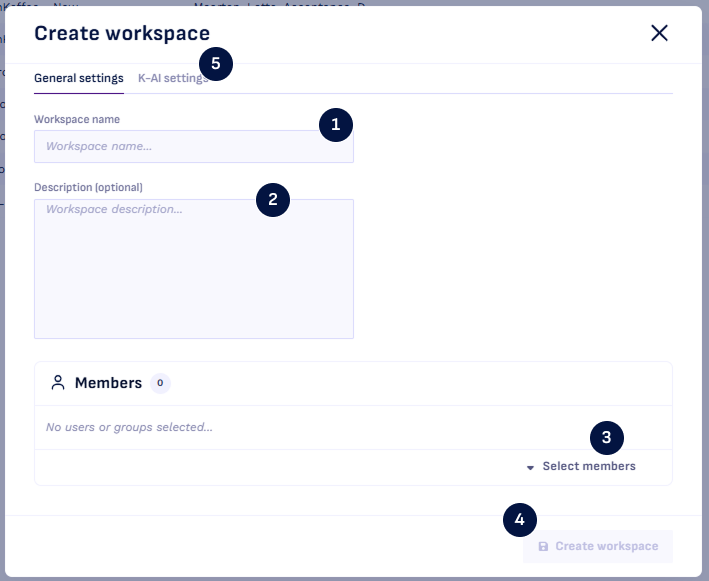
Select Create in the topbar.
- Give the workspace a Workspace name. It has to be different from your other workspaces.
- Optionally add a Description.
- Add the people who need access under Members, described below.
- Create workspace.
- Optionally add AI provider settings for K-AI
Giving people access
A workspace stays closed until you add members to it. The Members area is where you decide who can access the workspace and what they are allowed to do there.
Open the create or edit workspace modal and go to Members.
- Select the members you want to add. The list is split into Groups and Individual users.
- Give every member a role using the dropdown next to their name.
- Click save.
Everyone in the list needs a role before you can save. For what the roles mean and how to change them, see Roles and permissions.
Super admins do not appear in the member list. They already have full access to every workspace, so there is nothing to assign them to.
Changing or removing access
Open the workspace and go to Members:
- Change what someone can do: pick a different role next to their name.
- Take access away: remove them from the list.
Changes apply as soon as you save. Nobody has to sign out and back in.
Removing someone from the member list does not delete their account. They keep the account itself and any access they have to other workspaces.
Deleting a workspace
You can delete a workspace from the list, or switch on Bulk edit to select several and delete them together.
Deleting a workspace removes it and its contents permanently, and cannot be undone. You have
to type DELETE to confirm, so take the moment to check you have the right workspace.