File Upload
The file upload source in Konekti allows you to easily import flat files from your local machine.
Supported File Types
The following file types are currently supported for file uploads:
- CSV
- XLSX
- Parquet
note
The file size limit is 2GB. For larger files, load them into a database or file storage and use the appropriate source type.
Importing Files
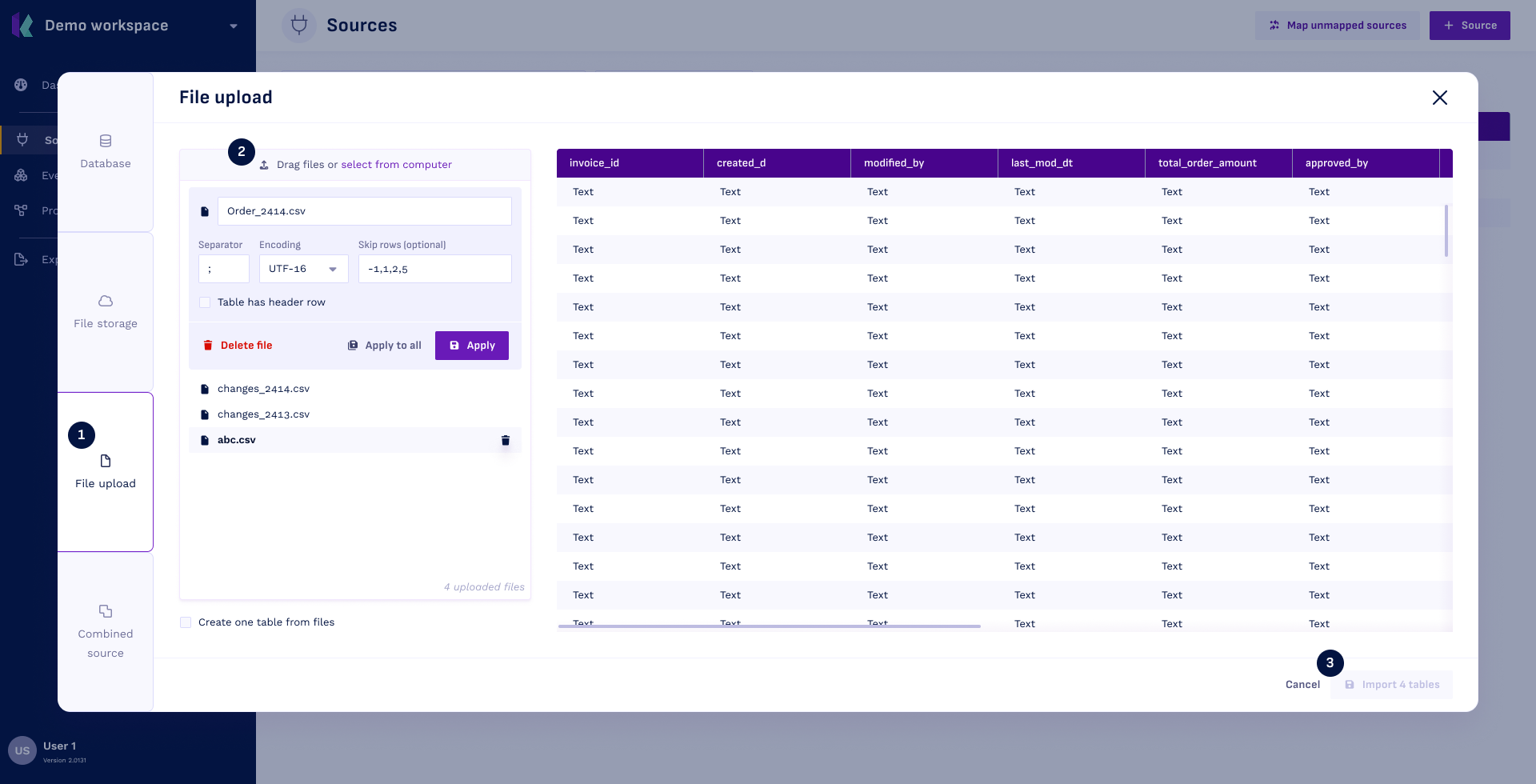
Step 1: Create a New Source
- Navigate to the Sources Overview and click
+ Source. - Select
File uploadfrom the options.
Step 2: Select Files
- Choose the files to import.
- Configure the import settings and click
Applyfor each file.
note
You can only upload one file type at a time. For multiple file types, upload them in separate batches.
tip
Use the Create one table from files button to combine selected files into a single table. This is useful for partitioned data sets, like log files separated by month. The settings will apply to all selected files, which must have identical columns.
Import Settings
| Field | Details |
|---|---|
| Name | The table name displayed throughout Konekti. Defaults to the original file name. |
| Skip rows | Comma-separated list (starting at 1) of rows to skip during import, useful for files with empty rows. Example: 1,3,5 will skip the first, third, and fifth rows. |
| Separator (CSV) | Specifies the character separating columns in a CSV file (e.g., , for comma, ; for semicolon, or \t for tab). |
| Encoding (CSV) | Specifies the CSV encoding. In most cases, the default (UTF-16) is sufficient, but changing the encoding may be relevant for tables with rare characters. |
Step 3: Import Tables
- Click
Import tablesto start the import.