Spark Export
This guide explains the structure of the Spark code that Konekti generates, and how to use it within your own data warehouse. We will use Databricks in the running example, but the steps are similar for each platform that allows you to create and run notebooks.
Explanation of the Code Export
When exporting the event store to Apache Spark format, the generated zip contains two types of files:
-
eventstore.py
This script generates the objects and activities you modeled in Konekti, and writes them to your data warehouse as Parquet files, making them easily reusabible for event logs. -
<log name>.py
For each of the event logs that you selected for inclusion, a py-script is generated that a cases and an events table for each log, using the configurations set in Konekti.
--
Set Up the Export Scripts
Do you want to set up multiple logs? Then create one notebook for the event store, and one notebook for each log. This enables each log to be ran in parallel. Do you only want to set up one log? Then create one notebook with one cell for the event store, and one cell for the log.
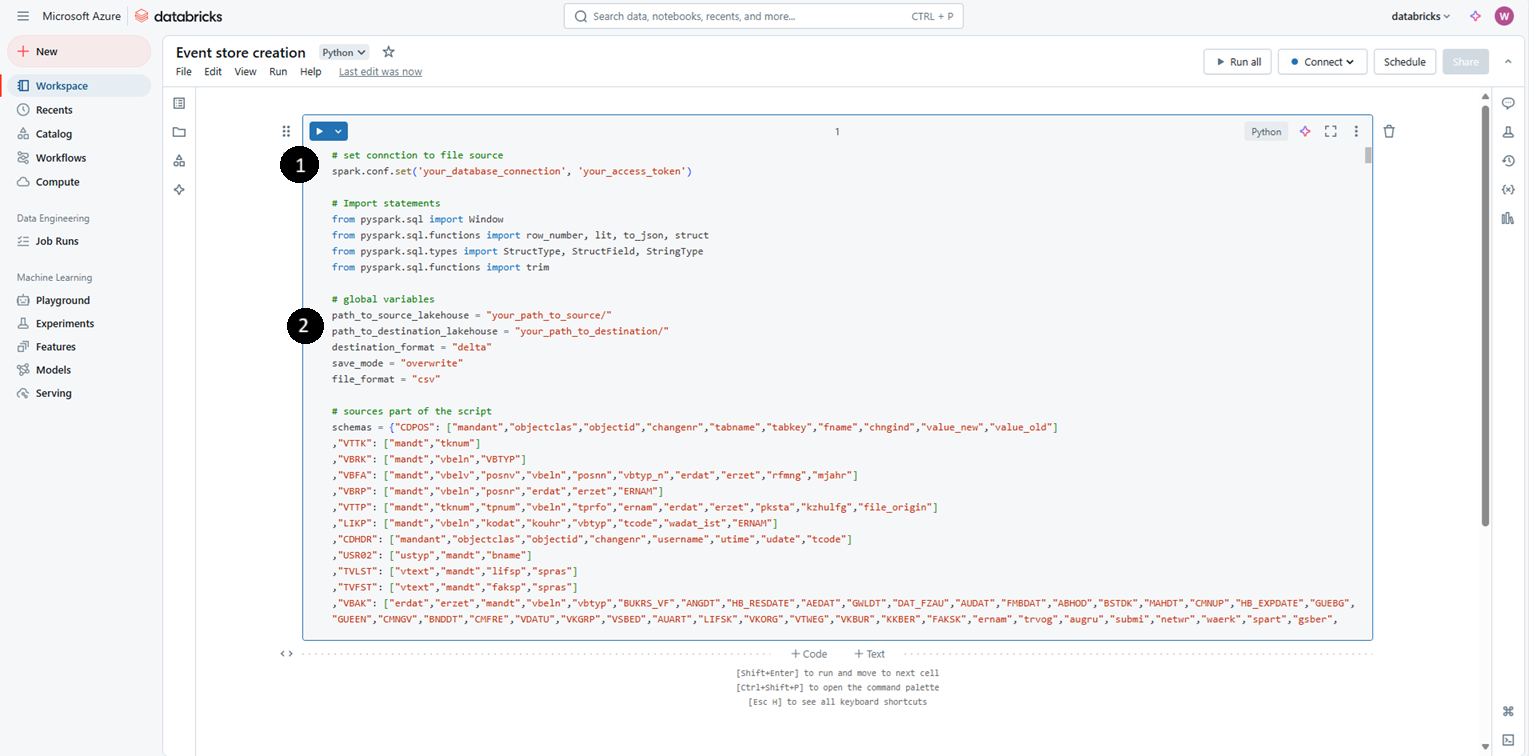
1. Set up the eventstore.py script
- Copy-paste the code into a code cell;
- Update the global variables;
- Run the cell. Validate that the destination folder now contains the files for the objects and activities.
2. Set up a <log name>.py script
Execute these steps for each event log that you'd like to deploy on your data warehouse.
- Copy-paste the code into a code cell;
- Update the global variables;
- Run the cell. Validate that the destination folder now contains the files for the cases and events tables.
- Run additional validations. We recommend at least these checks:
- Display output
Use the
display()function to inspect the event and case dataframe. Ensure all expected columns are present, confirm the data types and wether the sample values make sense. - Null value check A check for null values in case_id, activity_name, and timestamp. In a successful event log creation these columns should never have null values.
- Display output
Use the
3. Set up a workflow and schedule the execution of the scripts
In the previous steps, you ran the scripts manually. As a last step, set up a workflow to run the scripts regularly. As an example, this is how this works in Databricks:
- Go to Workflows in the Databricks sidebar and click Create Job.
- Add a new task for the event store notebook.
- Set the task type to Notebook.
- Select the notebook that contains your
eventstore.pylogic.
- Add additional tasks for each event log notebook (
eventlog1.py,eventlog2.py, etc.).- Set the task type to Notebook.
- Select each corresponding notebook.
- Under Dependencies, choose the event store task as the dependency.
Once configured, the workflow will:
- Run the event store task;
- Trigger all event log tasks in parallel, once the event store task completes successfully.
This structure ensures reliable execution and efficient use of compute resources.